

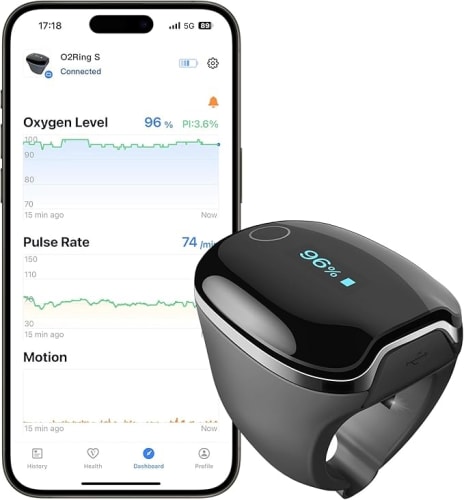
How to Connect the Wellue O2Ring to the ViHealth App: A Step-by-Step Guide
Monitor your oxygen saturation (SpO2) and heart rate effortlessly with the Wellue O2Ring Continuous Oxygen Monitor. This guide provides detailed instructions for connecting the O2Ring to the ViHealth app (iOS | Android) for real-time health tracking. Available at TurnerMedical.com.
Why Connect the O2Ring to the ViHealth App?
The Wellue O2Ring is a smart, FDA-registered ring pulse oximeter that tracks SpO2, heart rate, and body movement with medical-grade accuracy. When paired with the ViHealth app, it offers:
- Real-Time Monitoring: View live SpO2 and heart rate data.
- Detailed Reports: Generate sleep and health reports in PNG or CSV formats.
- Trend Analysis: Track weekly, monthly, or yearly health trends.
- Vibration Alerts: Customizable reminders for low SpO2 or irregular heart rates.
- Data Sharing: Export reports to share with doctors or family.
- Built-In Memory: Stores up to 4 sessions of 10-hour data, syncing automatically via Bluetooth.
This integration is ideal for managing sleep apnea, COPD, or monitoring oxygen levels during exercise or sleep.
Keywords: Wellue O2Ring, ViHealth app, pulse oximeter, sleep apnea monitoring, oxygen saturation, Turner Medical, Bluetooth pairing.
What You’ll Need
Before starting, ensure you have:
- Wellue O2Ring Continuous Oxygen Monitor (available at TurnerMedical.com).
- A smartphone or tablet with:
- iOS 11.0 or later (Download ViHealth for iOS).
- Android 5.0 or later (Download ViHealth for Android).
- A fully charged Wellue O2Ring (16-hour battery life after a full charge).
- Bluetooth and location services enabled on your phone (required for Android Bluetooth functionality).
Step-by-Step Guide to Connecting the Wellue O2Ring to the ViHealth App
Follow these instructions to pair your Wellue O2Ring with the ViHealth app for seamless health monitoring.
Step 1: Download and Install the ViHealth App
- Access the App Store:
- For iPhone/iPad: Open the App Store and visit ViHealth on the App Store.
- For Android: Open Google Play and visit ViHealth on Google Play.
- Install the App:
- Tap Get (iOS) or Install (Android) to download the ViHealth app, published by Shenzhen Viatom Technology Co., Ltd.
- Wait for the installation to complete, then open the app.
- Set Up Your Profile:
- Launch the ViHealth app and create an account or log in.
- Allow permissions for Bluetooth and location services (required for Android; ViHealth does not collect location data).
- Optionally, enable Apple Health integration (iOS) to sync data (note: Apple Health logs data hourly, while ViHealth records every 4 seconds).
Step 2: Prepare the Wellue O2Ring
- Charge the O2Ring:
- Connect the Wellue O2Ring to the included USB charging cable.
- Charge for 2–3 hours until the battery indicator shows full (provides 12–16 hours of use).
- Wear the O2Ring:
- Place the Wellue O2Ring on your thumb or index finger (fits circumferences of 2.0–3.2 inches).
- Ensure a snug but comfortable fit for accurate readings.
- The device activates automatically when worn, displaying SpO2 and heart rate on the LED screen.
- Enable Bluetooth:
- The Wellue O2Ring’s Bluetooth is active when powered on. Do not pair manually via your phone’s Bluetooth settings, as the ViHealth app handles pairing.
Step 3: Pair the O2Ring with the ViHealth App
- Open the ViHealth App:
- Launch the ViHealth app on your smartphone or tablet.
- Ensure Bluetooth is enabled on your device (and location services for Android).
- Add the O2Ring:
- In the ViHealth app, navigate to the Device or Add Device section (typically a “+” icon or “Add Device” button).
- Select O2Ring from the list of available devices.
- Connect the Device:
- The app will scan for nearby Bluetooth devices. Ensure the Wellue O2Ring is powered on and within 10 meters (33 feet).
- When the O2Ring appears (e.g., as “O2Ring_XXXX”), tap to connect.
- The app will display a confirmation message once paired, and the O2Ring’s LED may flash to indicate a successful connection.
Pro Tip: If the Wellue O2Ring doesn’t appear, ensure it’s charged and not paired with another device. Restart the app and try again.
Step 4: Use the O2Ring with the ViHealth App
- Start Monitoring:
- Wear the Wellue O2Ring during sleep or activity.
- The ViHealth app will display real-time SpO2, heart rate, and motion data.
- Customize Alerts:
- In the app, go to Settings > O2Ring to set thresholds for low SpO2 or irregular heart rate alerts.
- Enable vibration feedback on the O2Ring to alert you if readings fall outside set ranges.
- Sync and Review Data:
- The Wellue O2Ring automatically syncs data to the ViHealth app when connected.
- View detailed reports under the History or Reports tab, including oxygen dips, average SpO2, and heart rate trends.
- Export reports in PNG or CSV format for sharing with healthcare providers.
Tip: The Wellue O2Ring stores up to 4 sessions of 10-hour data, so you can record even when not connected to the app and sync later.
Step 5: Disconnect or Reconnect (Optional)
- Disconnect the O2Ring:
- In the ViHealth app, go to Device > O2Ring and select Disconnect or Remove Device.
- Alternatively, power off the Wellue O2Ring by removing it for a few minutes.
- Reconnect to a New Device:
- Open the ViHealth app on the new device and follow Step 3 to pair the Wellue O2Ring.
- Ensure the O2Ring is not connected to another device before pairing.
Tips for Optimal Use and Maintenance
- Fit and Comfort: Wear the Wellue O2Ring snugly on your thumb or index finger to ensure accurate readings without discomfort.
- Battery Management: Charge the O2Ring every 12–16 hours of use to maintain continuous monitoring.
- Cleaning: Wipe the sensor with a soft cloth and mild disinfectant after use to maintain accuracy.
- Bluetooth Range: Keep your phone within 10 meters of the Wellue O2Ring for a stable connection.
- App Updates: Regularly update the ViHealth app via the App Store or Google Play for the latest features and compatibility.
Troubleshooting Common Issues
- Pairing Fails: Ensure Bluetooth and location services (Android) are enabled. Restart the Wellue O2Ring and app, then retry pairing.
- No Data Displayed: Verify the O2Ring is charged and properly worn. Check that the sensor is clean and free of obstructions.
- App Crashes: Update the ViHealth app to the latest version and ensure your device meets the minimum OS requirements (iOS 11.0 or Android 5.0).
- Data Not Syncing: Ensure the O2Ring is within Bluetooth range and not connected to another device. Manually sync data in the app’s History tab.
Shop the Wellue O2Ring at Turner Medical
Ready to monitor your health with ease? Purchase the Wellue O2Ring Continuous Oxygen Monitor today at TurnerMedical.com. Download the ViHealth app for iOS or Android to start tracking your SpO2 and heart rate. For support, contact our team or consult your healthcare provider.