Step-by-Step Guide to Creating Oximetry Reports and Exporting Data Using Nonin 3150USB and 3150BLE Wrist Oximeters
This guide provides detailed instructions for using the Nonin 3150USB WristOx2 and Nonin 3150BLE WristOx2 pulse oximeters to collect oxygen saturation (SpO2) and pulse rate data, transfer it to a computer, and generate reports using the nVision software. These devices are ideal for sleep studies, cardiopulmonary rehabilitation, and home monitoring, offering up to 1,080 hours of data storage.
Prerequisites
Before starting, ensure you have the following:
- A Nonin 3150USB or 3150BLE wrist oximeter with a charged battery (two AAA batteries, providing 48 hours of non-Bluetooth use or 24 hours with Bluetooth active for the 3150BLE).
- A compatible Nonin PureLight sensor (e.g., 8000AA-WO2 clip, 8000S-WO2 soft, or 8000J-WO2 flex sensor).
- A computer with Windows (7, 8, or 10) for running nVision software.
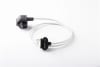
- For 3150USB: A Nonin 3150SC USB PC download cable.
- For 3150BLE: A Bluetooth-enabled computer or a compatible iOS/Android device with the NoninConnect app (optional for wireless transfer).
- nVision software installed (version 6.5 recommended for advanced features like sleep study analysis and Six Minute Walk Test reporting).
Step 1: Set Up the Nonin 3150USB or 3150BLE Wrist Oximeter
Proper setup ensures accurate data collection. Follow these steps:
- Insert Batteries: Open the battery compartment on the 3150USB or 3150BLE and insert two AAA batteries. Ensure correct polarity. The device should power on briefly to confirm functionality.
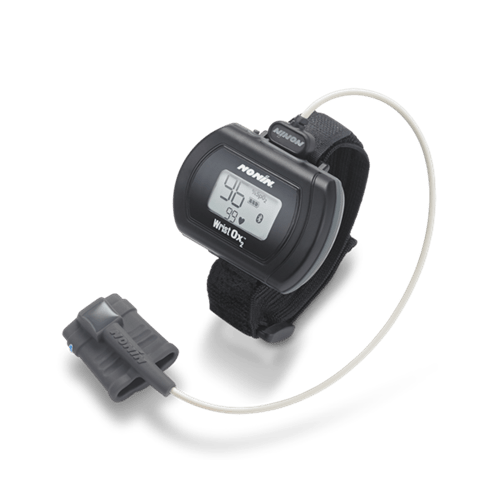
- Attach the Wristband: Secure the wristband to the oximeter. Adjust it to fit the patient’s wrist comfortably, ensuring it is snug but not restrictive.
- Connect the Sensor: Attach a Nonin PureLight sensor (e.g., clip or soft sensor) to the oximeter’s sensor port. Place the sensor on the patient’s finger (typically the index or middle finger) for optimal readings. The sensor activates the device automatically upon insertion.
- Verify Display: The oximeter’s screen should display SpO2 (0–100%), pulse rate (18–321 BPM), pulse strength, and battery life in full display mode. If using Memory Volume Indicator (MVI) mode, it shows recorded data duration and battery status.
Step 2: Configure the Oximeter for Data Collection
The Nonin 3150 series allows customization of data recording settings for specific applications like overnight sleep studies or Six Minute Walk Tests (6MWT).
- Select Sampling Rate: The default sampling rate is 4 seconds, but you can adjust to 1 or 2 seconds for higher resolution (useful for detailed sleep studies). Refer to the operator’s manual (available on CD with the device) for instructions on changing settings via the device menu.
- Program Recording (Optional): Using nVision software, you can pre-program up to three start/stop times for automated data collection. This is ideal for overnight monitoring. Connect the oximeter to the computer (via USB for 3150USB or Bluetooth for 3150BLE) and use nVision’s Programmed Mode to set schedules.
- Test the Setup: Wear the device for a few minutes to ensure it records SpO2 and pulse rate accurately. Check for stable readings (SpO2 ±2% accuracy, pulse rate ±3 BPM) and ensure the sensor is not too tight or loose.
Step 3: Collect Oximetry Data
The oximeter is now ready for patient use in settings like sleep labs, home care, or ambulatory monitoring.
- Patient Instructions: Instruct the patient to wear the oximeter like a watch, with the sensor on their finger. For overnight studies, ensure the sensor remains secure during sleep. The device’s 1,080-hour non-volatile memory ensures data is retained even if the battery is depleted.
- Monitoring Duration: For sleep studies, collect data overnight (typically 6–8 hours). For 6MWT or pulmonary rehab, monitor for the duration of the test (6 minutes or as prescribed). The device automatically records SpO2 and pulse rate at the set sampling interval.
- Check Data Storage: Use the MVI mode to verify the amount of data recorded (displayed in hours and minutes). This ensures sufficient data for analysis, especially for oxygen qualification testing.
Step 4: Transfer Data to nVision Software
Data transfer methods differ between the 3150USB and 3150BLE. Follow the appropriate steps below.
For Nonin 3150USB
- Connect the Oximeter: Use the Nonin 3150SC USB PC download cable to connect the oximeter to your computer’s USB port.
- Open nVision Software: Launch the nVision software (version 6.5 recommended). Ensure the software is installed and updated. If not, install it from the CD provided with the 3150SK Starter Kit or download it from Nonin’s website.
- Detect the Device: In nVision, select the option to connect a device via USB. The software should automatically detect the 3150USB. If it doesn’t, check the cable connection and ensure drivers are installed (drivers are typically included with nVision or available from Nonin’s support).
- Download Data: Select the “Download Data” option in nVision. The software will transfer the recorded SpO2, pulse rate, and other metrics (up to 1,080 hours at 4-second intervals) to your computer. This process is secure and typically takes a few minutes, depending on data volume.
For Nonin 3150BLE
- Enable Bluetooth: Ensure the 3150BLE’s Bluetooth is active (refer to the manual for activation instructions). Pair the device with your computer or mobile device (iOS/Android) using the NoninConnect app or nVision software.
- Connect via nVision: Open nVision software and select the Bluetooth connection option. The software will detect the 3150BLE if it is in range (typically 10 meters). Alternatively, use the NoninConnect app for mobile data transfer.
- Download Data: Initiate the data transfer in nVision or NoninConnect. The 3150BLE supports wireless transfer of up to 1,080 hours of data, with a transfer speed of up to 921.6 kbps via Bluetooth 2.1+EDR. Ensure a stable connection to avoid interruptions.
- Optional USB Transfer: If Bluetooth is unavailable, use the 3150SC USB cable as described for the 3150USB.
Step 5: Analyze Data in nVision Software
The nVision software offers robust tools for analyzing SpO2, pulse rate, and other metrics.
- Import Data: Once downloaded, the data appears in nVision’s patient database, which supports up to 1,000 patient records and 1 GB per study. Assign the data to a patient profile for organization.
- Customize Visualization: Use nVision’s Strip Chart, Full Study, or Sleep Reports to visualize data. Adjust the x-axis (time, up to 72 hours) and y-axis (SpO2, pulse rate, etc.) to focus on specific metrics. Zoom in on events like desaturations or apneas.
- Analyze Metrics: For sleep studies, nVision calculates Oxygen Desaturation Index (ODI), Apnea-Hypopnea Index (AHI) estimates, and time below SpO2 thresholds. For 6MWT, it tracks distance, desaturation events, and recovery time. Automated event detection highlights significant changes in SpO2 or pulse rate.
- Edit Data (Optional): Use nVision’s editing tools to remove artifacts (e.g., motion-induced errors) or focus on specific time periods. This ensures accurate analysis for clinical reporting.
Step 6: Generate and Export Oximetry Reports
Create professional reports for clinical or patient use.
- Select Report Type: In nVision, choose from pre-set report categories (e.g., Sleep Study, 6MWT, or Summary Report). Sleep Study reports include ODI, AHI, and desaturation event counts, while 6MWT reports detail exercise capacity metrics.
- Customize Report: Adjust report settings, such as time range, SpO2 thresholds, and included metrics (e.g., SpO2, pulse rate, event markers). Add patient details for personalized reports.
- Generate Report: Click “Generate Report” to create a PDF or printed report. Reports include graphs (e.g., SpO2 over time), event summaries, and statistical data like average SpO2 and pulse rate.
- Export or Save: Save the report to your computer or export it in XML format for integration with Electronic Medical Records (EMR). Use nVision’s compression algorithms to manage large datasets efficiently.
Step 7: Save and Archive Data
Ensure data is securely stored for future reference.
- Save Patient Records: Store data in nVision’s patient database, which supports up to 1,000 records. Assign unique identifiers to each patient for easy retrieval.
- Backup Data: Regularly back up the nVision database to an external drive or cloud storage to prevent data loss.
- Clear Oximeter Memory: After transferring data, clear the oximeter’s memory via nVision to prepare for the next patient. The non-volatile memory ensures data is safe during transfer, but clearing it frees up space (1,080 hours at 4-second intervals).
Tips for Optimal Use
- Sensor Placement: Ensure the sensor is clean and properly positioned to avoid inaccurate readings. Use only Nonin PureLight sensors for compatibility and accuracy.
- Battery Management: Check battery levels before extended monitoring. Replace batteries if the indicator shows low power.
- Software Updates: Keep nVision software updated for compatibility with Windows and optimal performance.
- Troubleshooting: If the device fails to connect, verify USB drivers (for 3150USB) or Bluetooth pairing (for 3150BLE). Contact Nonin support for assistance with software or hardware issues.
- Patient Comfort: Adjust the wristband and sensor to minimize discomfort during long-term monitoring, especially for overnight studies.
Common Applications
- Sleep Studies: The 3150USB and 3150BLE are ideal for detecting apnea/hypopnea events and desaturations in sleep labs or home settings.
- Pulmonary Rehabilitation: Use for 6MWT to assess exercise capacity in COPD or heart failure patients.
- Home Care: Monitor chronic conditions like COPD or sleep apnea, with easy data transfer for clinician review.
Notes and Limitations
- The 3150BLE’s Bluetooth range is approximately 10 meters; ensure the receiving device is within range for wireless transfer.
- Some users report that nVision software feels outdated and may require time to set up. However, its reporting capabilities are robust once configured.
- The devices are FDA-cleared and made in the USA, with a 3-year warranty for reliability.
By following these steps, you can effectively use the Nonin 3150USB or 3150BLE wrist oximeters with nVision software to collect, transfer, analyze, and report oximetry data for clinical or home use. For further assistance, consult the operator’s manual or contact Nonin’s support team.